Help & Getting Started
A granular, step-by-step guide - written so a SOC analyst can use every part of the platform.
1. About this platform
vCISO - Open Threat Intel is a free platform for the security community to share threat intelligence and IOCs, and to watch all the security news, advisories, CVEs and ransomware activity in one window - built so a SOC analyst can monitor the threat landscape without juggling 20 tabs.
It's run by Anil Yellamati . This is a lean, community-driven project - not a heavily-staffed product. If something's broken or missing, please use the Feedback button (bottom-right of every page) to raise a bug or feature request - you'll get a ticket number and we'll address it.
2. Do I need an account?
- Browsing is open - Threat Map, vCISO Daily, Recent Victims and the Intel Feed are all viewable with no login.
- Sign in (top-right) to contribute and see the community: read & post intel, upload/share IOCs, rate posts, join groups, connect & message people, get your Personal SIEM Feed key - and get company-exposure alerts. Member intel posts are never shown on the public internet.
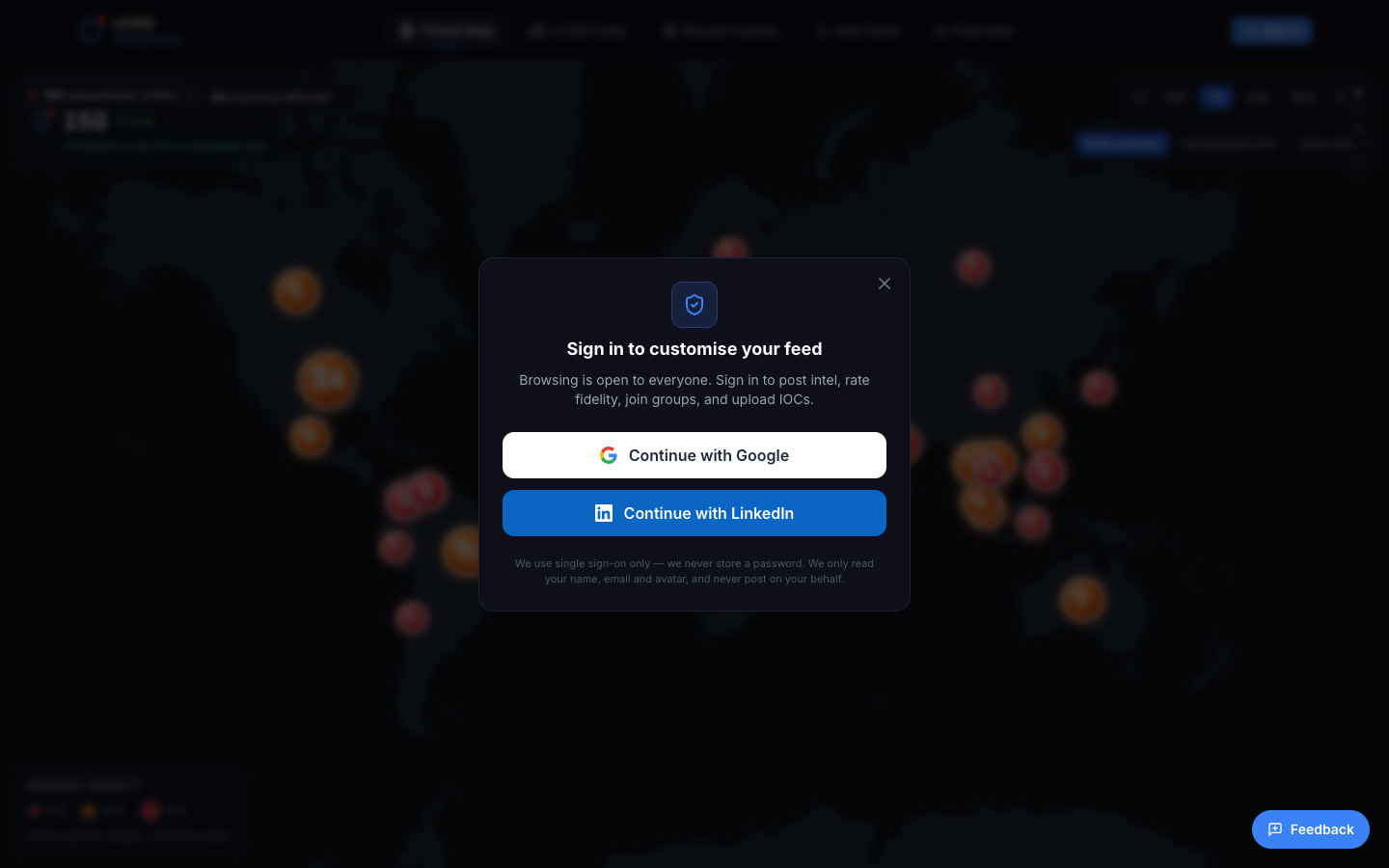
- Passwordless - three ways in:
Continue with Google,Continue with LinkedIn, oryour work email(a one-time code). We never store a password; we only read your name, email and avatar, and never post on your behalf.
2.1 Sign in with your work email (verified company)
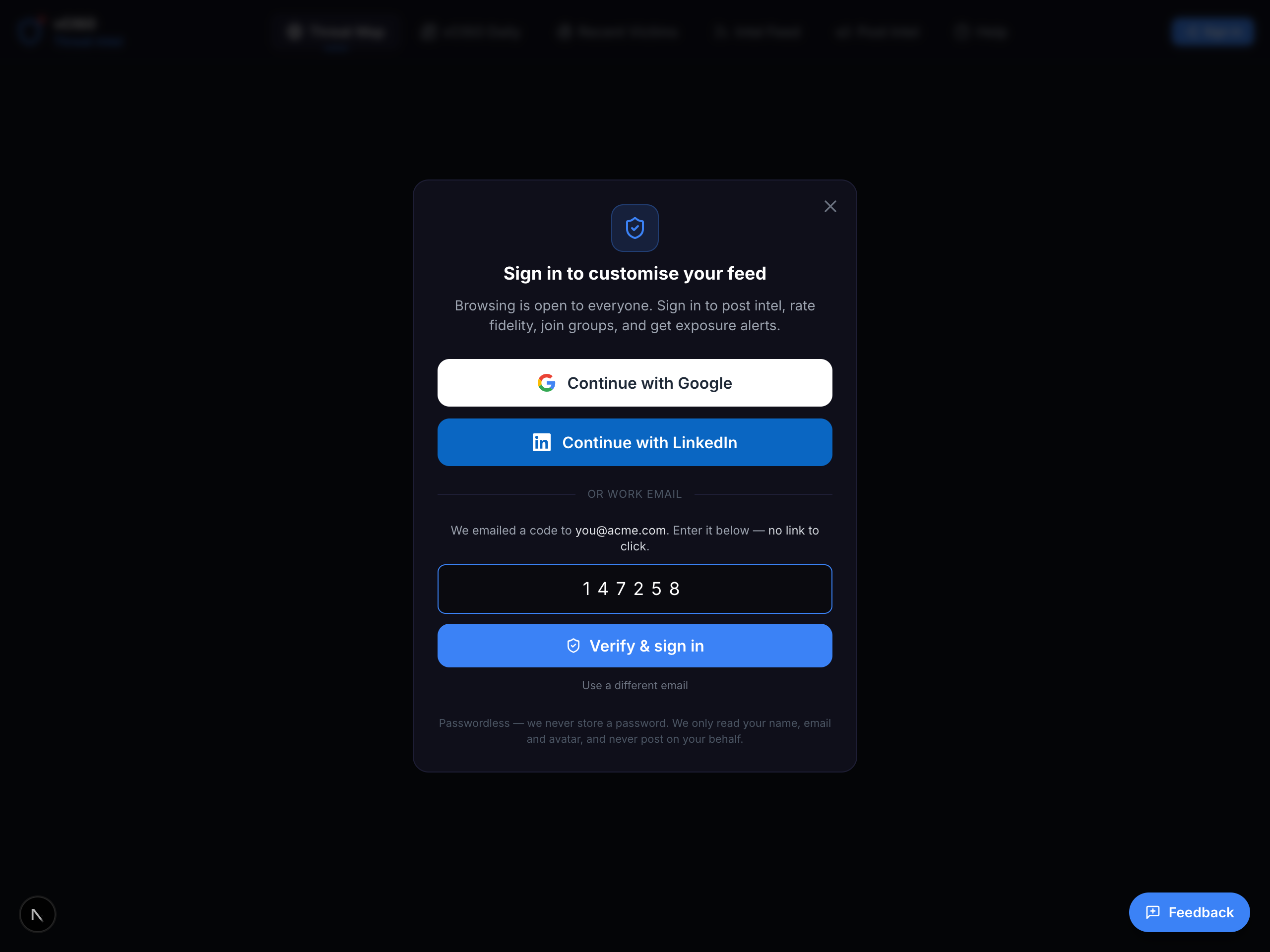
Using your company email does two things a personal Gmail/Outlook login can't: it gives you a verified company badge, and it switches on exposure alerts for your company's domain. Step by step:
- Click
Sign in(top-right), then under “or work email” type your company address (e.g.[email protected]) and pressSend me a code. - Check your inbox for a 6-digit code from vCISO. It's a code, not a link - nothing to click, which is friendly to corporate mail filters.
- Type the code into the box and press
Verify & sign in. That's it - you're in.
The verified ✓ badge is tied to the domain you proved by receiving the code - it can't be self-typed or spoofed. It appears next to your name on your posts so others know the intel comes from a confirmed organisation.
Exposure alerts. Once your company domain is verified, the daily job checks it against ransomware leak sites and known breach data. If your domain turns up, you get an in-platform alert - shown on the bell, the Alerts tab, and (when you pin it) My Feed under Post Intel. These are messages inside the platform only - we never send alert emails.
- Personal email is fine too - Google/LinkedIn or a Gmail/Outlook code still let you browse, post and connect. You just won't get the ✓ badge or company exposure alerts (those need a real company domain).
- Didn't get the code? Check spam, confirm you typed the right address, and note there's a short cooldown between requests. The code expires after a few minutes - just request a new one.
- Privacy - we store only your email address to scope your alerts; we never expose your email to other members.
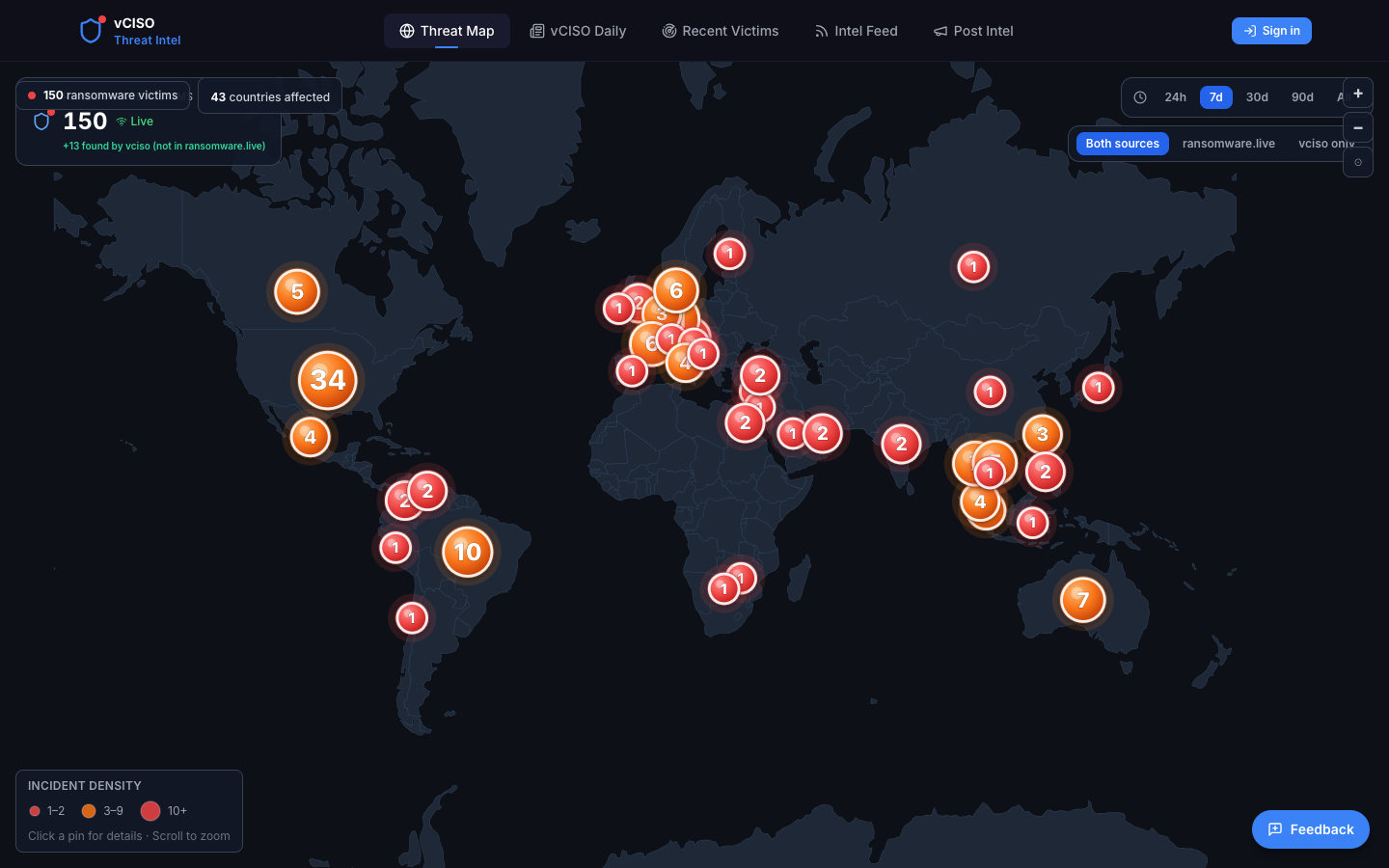
3. Threat Map (home)
The world map of live ransomware victims, with three news sections below it.
- Time window (top-right):
24h7d30d90dAll- defaults to 7d. - Source toggle:
Allr.liveRansomLookvciso. ransomware.live is the primary feed; RansomLook (ransomlook.io) adds victims it missed; vciso = victims our own onion collector found that are in neither public tracker. - Map pins: the number = how many victims in that country. Click a pin → a list of every victim there; click any one to see its detail.
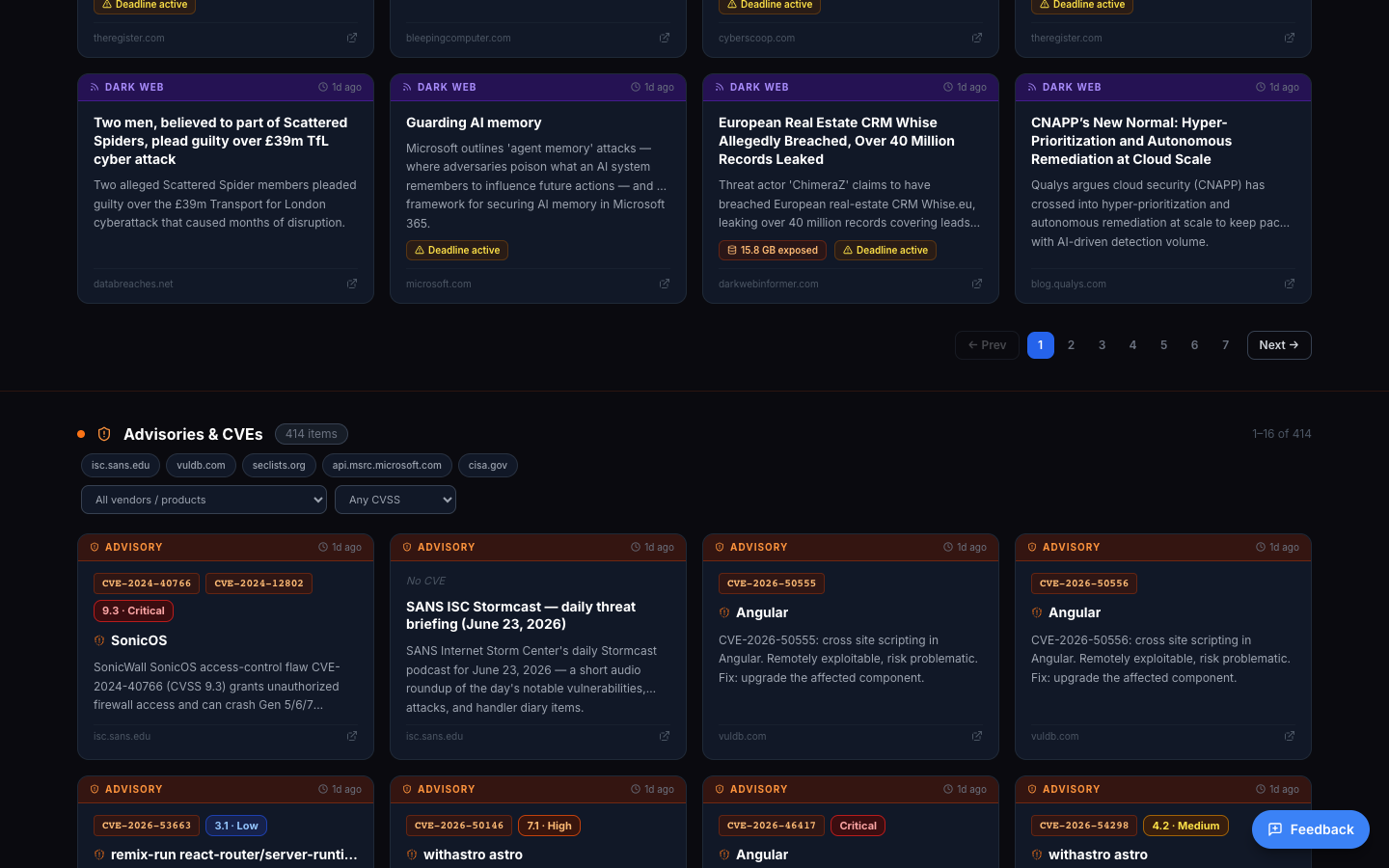
- Security News - aggregated headlines; click a tile to open the source (via a safe redirect warning).
- Advisories & CVEs - filter by Vendor/Product and CVSS range (e.g. 9-10 critical, 7-8.9 high…).
- Ransomware Victims - newest disclosures.
4. vCISO Daily
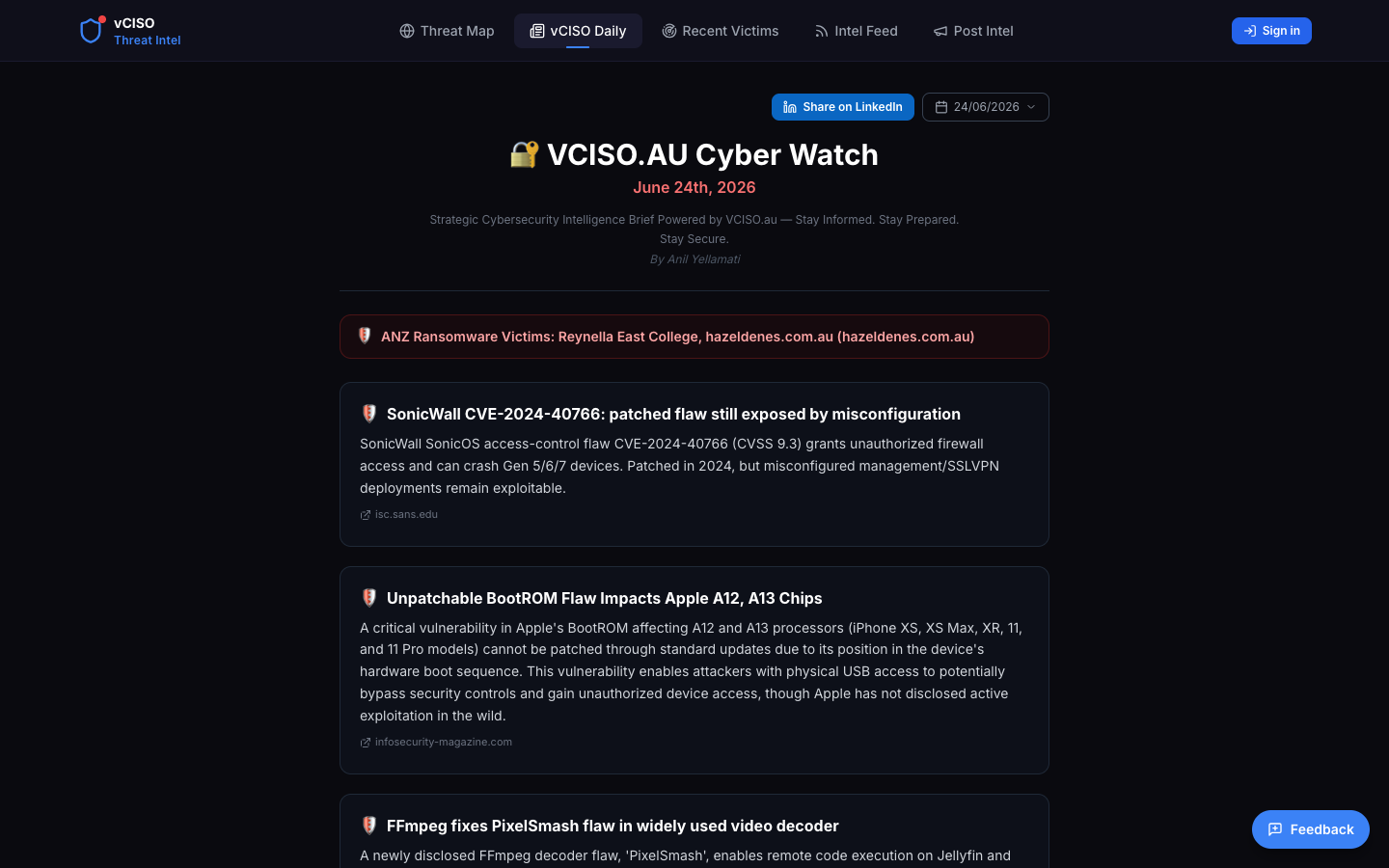
A once-a-day “Cyber Watch” brief: top stories, a Dark Web & Breach Watch block, and a Ransomware Exposure List by country (with an ANZ callout).
- Share on LinkedIn - copies the text and opens LinkedIn to paste.
- Archive dropdown - read previous days' briefs.
5. Recent Victims (analytics)
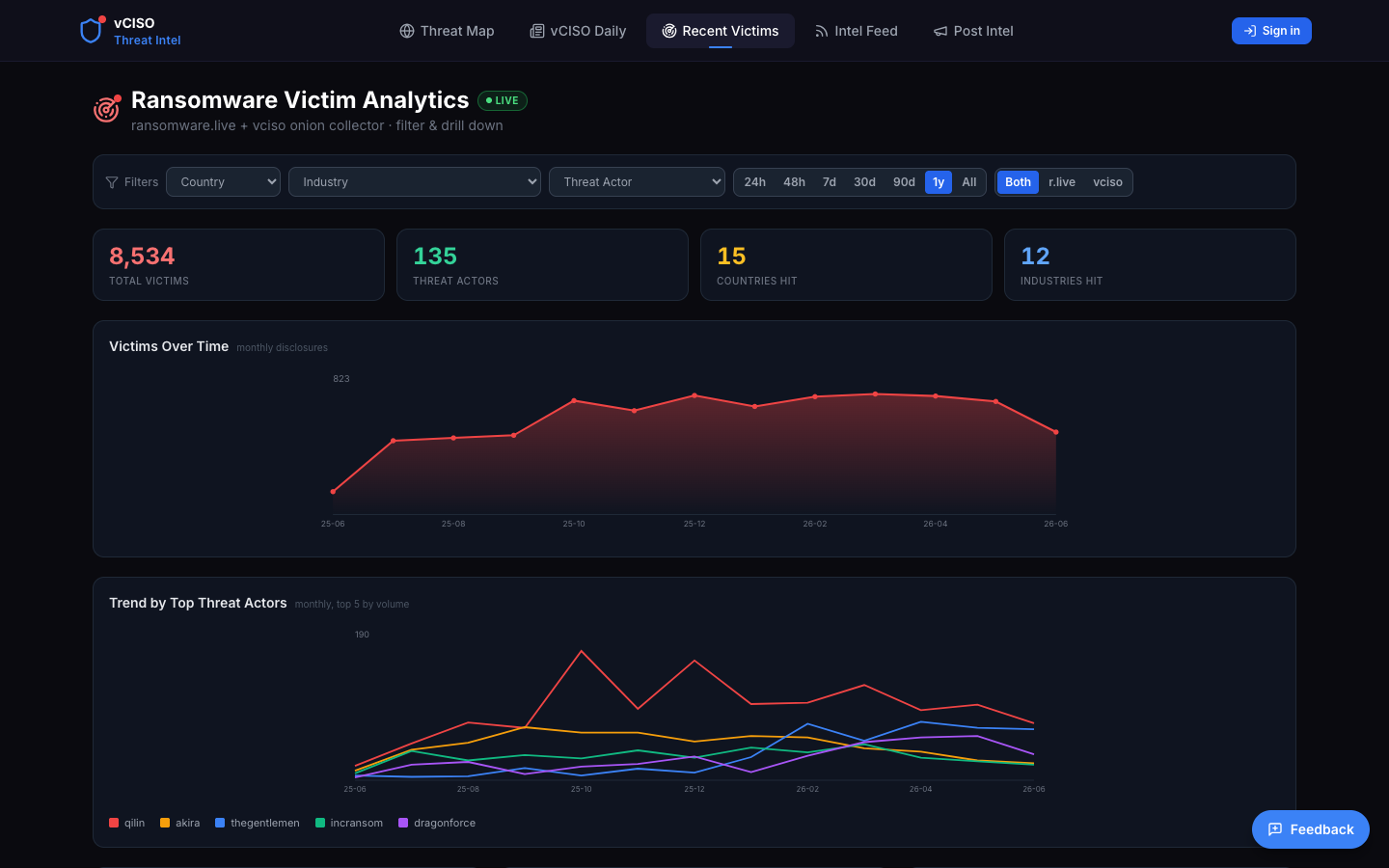
Drill-down analytics over ransomware.live + vciso.
- Filters (all combine as AND): Country · Industry · Threat Actor · Time (
24h/48h/7d/30d/90d/1y/All) · Source (Both/r.live/vciso). - KPI tiles: Victims · Threat Actors · Countries Hit · Industries Hit - all reflect the active filter.
- Charts: Victims Over Time, Trend by Top Threat Actors. The Top Threat Actors / Countries / Industries bars are clickable to filter.
- Map + victim cards with a name/domain search.
6. Intel Feed - IOCs & API
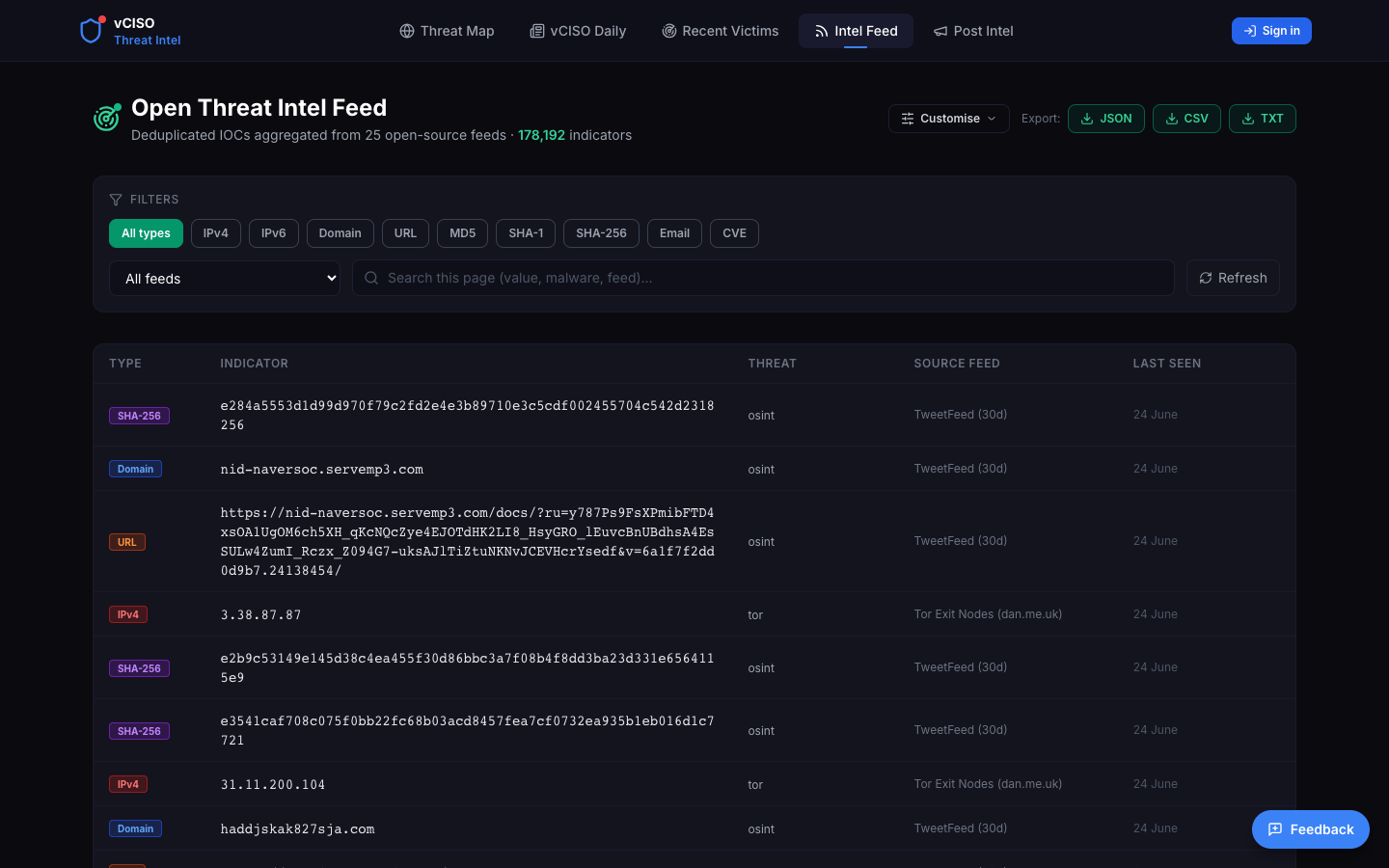
What it is: one deduplicated list of IOCs aggregated from many open-source feeds, plus your own uploads, with a no-auth public API to pull them into your tooling.
6.1 Reading the table
Columns: Type · Indicator · Threat · Source Feed · Last Seen. Hover a row → copy the indicator. Type badges are colour-coded (IP red, domain blue, URL orange, hashes purple, email pink, CVE yellow).
6.2 Filtering
- Type pills:
All typesIPv4IPv6DomainURLMD5SHA-1SHA-256EmailCVE. - Feed dropdown:
All feeds→ pick one source. - Search box: “Search this page (value, malware, feed)…” (filters the current page).
6.3 Export & pull into your SIEM (no login)
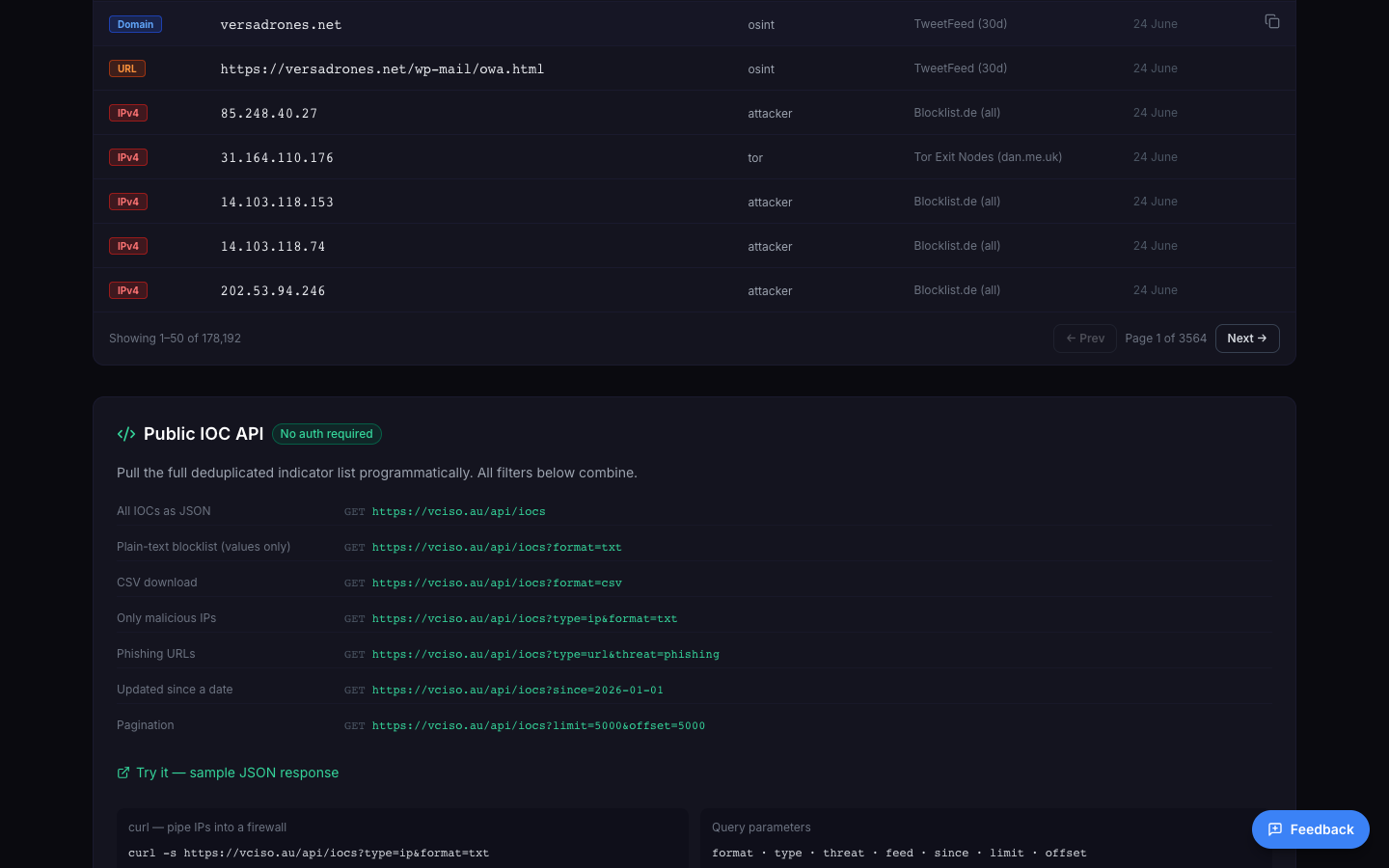
Export buttons: JSON CSV TXT (respect your filters; up to 50,000 rows). The on-page Public IOC API needs no auth:
GET /api/iocs
GET /api/iocs?format=txt
GET /api/iocs?type=ip&format=txt
GET /api/iocs?type=url&threat=phishing
GET /api/iocs?since=2026-01-01
GET /api/iocs?key=vciso_yourkey
curl -s https://vciso.au/api/iocs?type=ip&format=txt
Params: format type threat feed since limit offset.
6.4 Public data API - victims, news & darkweb (no key, free for the community)
Everything on the homepage is also available as open JSON - no login, no key. Built for the community: pull our ransomware-victim, news/advisory and darkweb-marketplace data straight into your own tools, dashboards or research.
GET /api/victims
GET /api/victims?country=AU&source=ransomware.live&days=30&limit=500
GET /api/victims/analytics
GET /api/incidents?hours=24
GET /api/darkweb/markets
curl -s "https://vciso.au/api/victims?country=AU&limit=500"
All open and free. The darkweb endpoint deliberately returns metadata only - never the .onion address or any stolen data. Please be kind to a community service: cache results and poll at a sensible interval.
Prefer Splunk? The vCISO Threat Intel Splunk app ingests all of this (victims, news, darkweb) plus your personal IOC feed, with ready-made dashboards. Download the Splunk app (.spl) - or see the full walkthrough in section 10.
6.5 Customise your feeds (sign in → “Customise”)
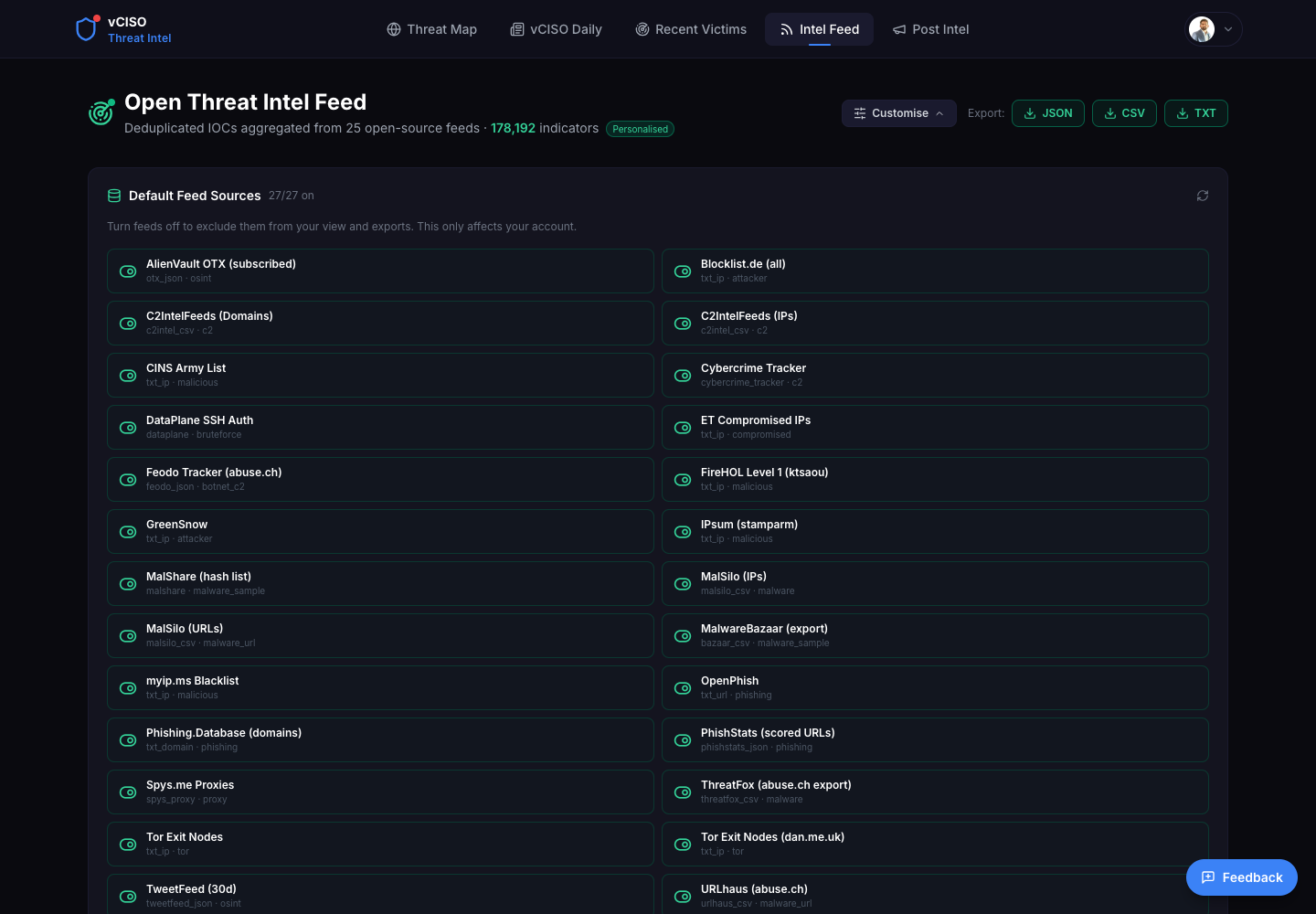
- Default Feed Sources - toggle community feeds on/off (only affects your account).
- Your Own Feed Sources - add a personal feed: Feed name, URL, and a format (
txt_iptxt_urlcsvjson…). MISP/TAXII are admin-only.
6.6 Upload your own IOCs (sign in)
- “Drop files or click to upload” - accepts TXT / CSV · STIX 2.x · PDF reports (also
.json/.ioc/.log). - Auto-extraction detects IPs, domains, URLs, hashes, emails, CVEs - and auto-refangs defanged IOCs (
1[.]2[.]3[.]4→1.2.3.4,hxxp://→http://). - Safety: max 3 MB; files are checked by magic-byte signature, not extension - executables/archives (EXE, ELF, Mach-O, ZIP/RAR/7z…) are rejected. You can't be attacked through an upload.
- Toggle “Include my uploaded IOCs in the feed list & exports” to merge them into your view.
Note: Intel Feed uploads go to your personal vault. To share IOCs with a group or specific people, use Post Intel (below).
7. Post Intel - community network
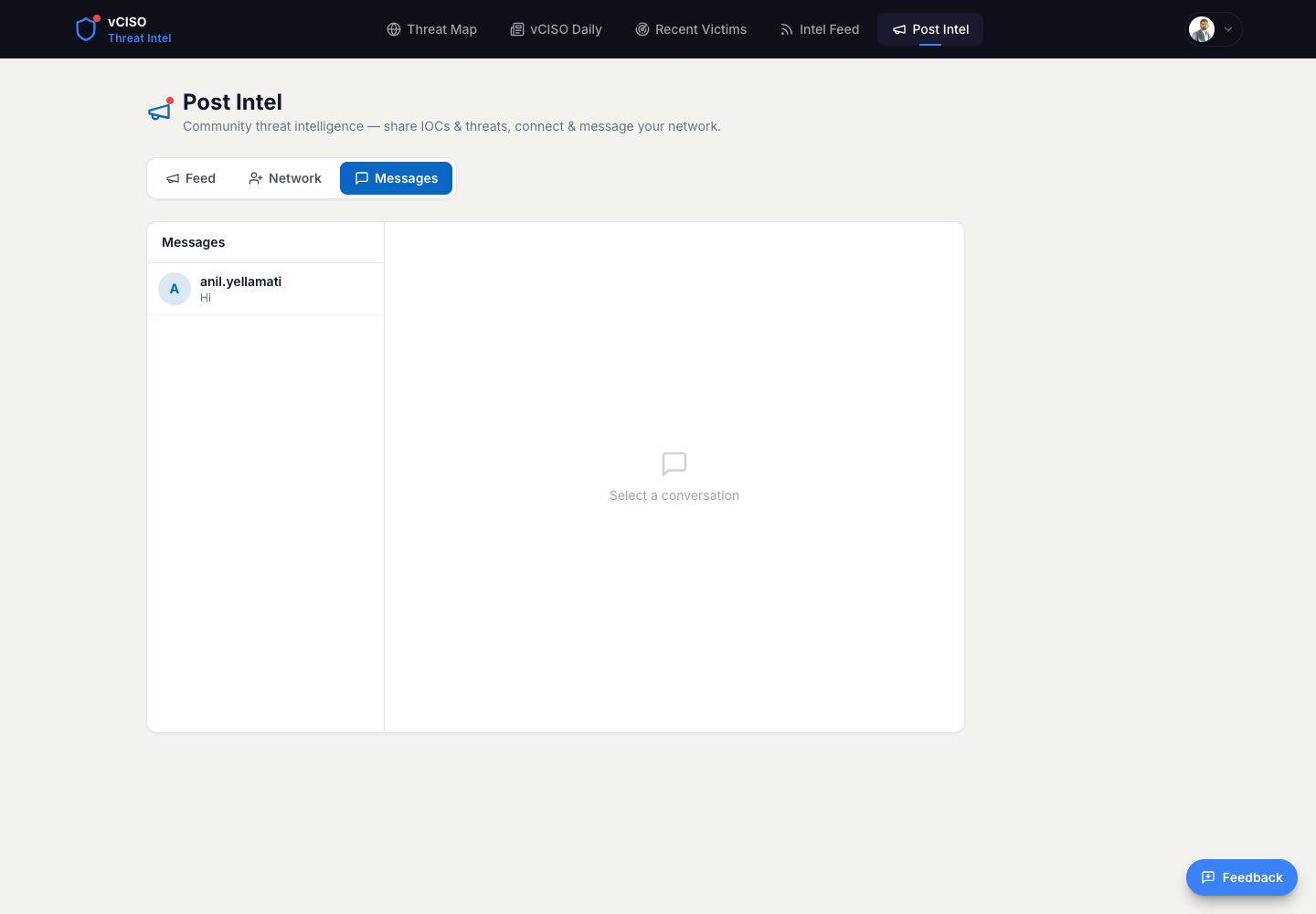
Three sub-tabs: Feed · Network · Messages. Red (N) badges show new connection requests/invites (Network) and unread messages (Messages).
7.1 Posting intel
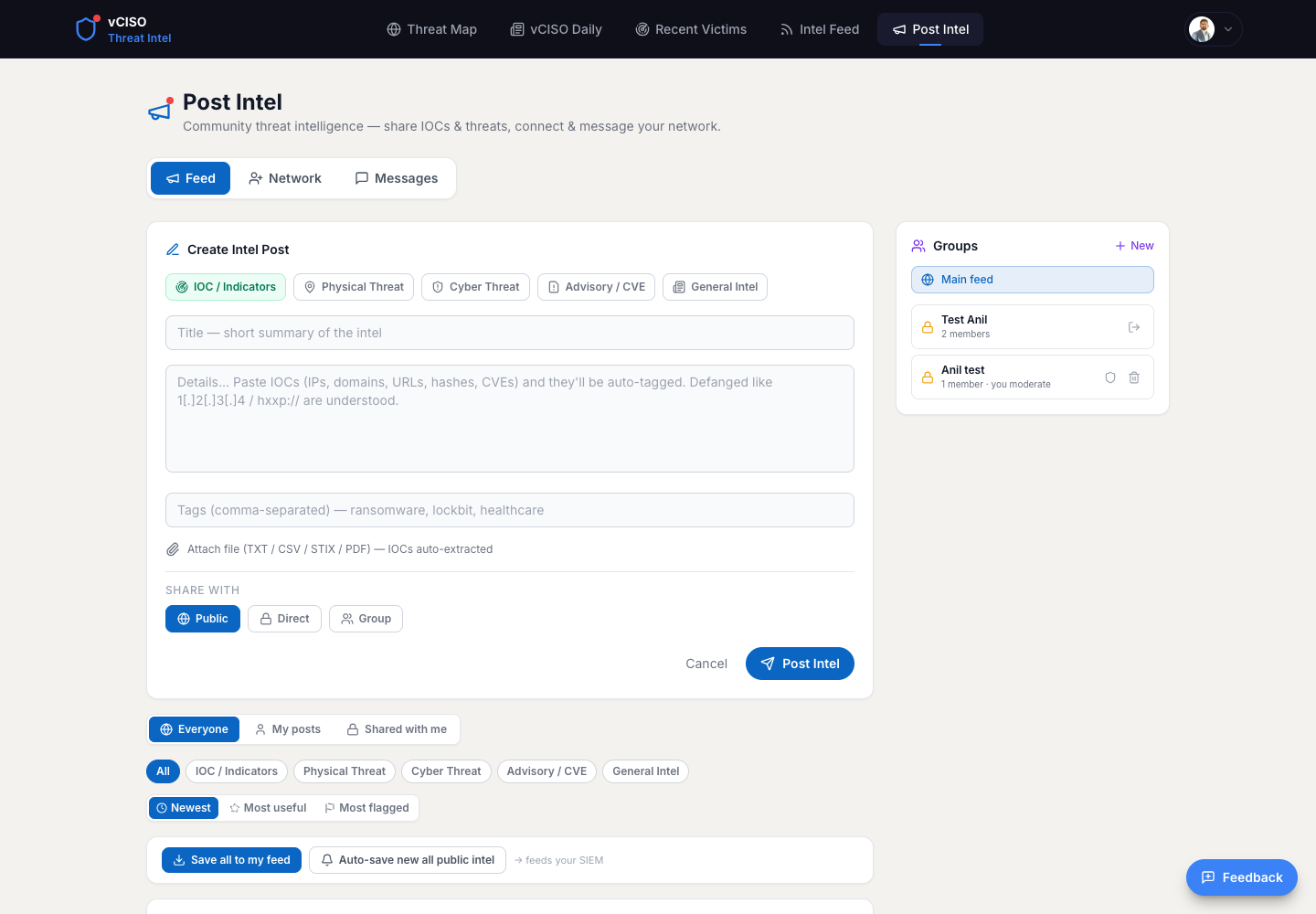
Click “Share intel - IOCs, a physical threat, an advisory…” to open the composer:
- Category:
IOC / IndicatorsPhysical ThreatCyber ThreatAdvisory / CVEGeneral Intel. - Title - a short summary.
- Body - paste IOCs and they're auto-tagged; defanged formats understood. A profanity filter blocks disallowed language (the box turns red).
- Tags - comma-separated (e.g.
ransomware, lockbit, healthcare). - Attach file (TXT/CSV/STIX/PDF) - IOCs auto-extracted.
- Share with:
Public(everyone) ·Direct(by email - mutual-group contacts auto-suggest) ·Group(members only). - TLP (Traffic Light Protocol) -
ClearGreenAmberRed. This is the sharing sensitivity (how far recipients may re-share), separate from who can see it. Defaults to Amber; every post shows a TLP:LEVEL badge. - Click Post Intel.
On each post you can: rate Useful (1-5★), flag Dubious, comment, and Save N to my feed (pulls those IOCs into your Personal SIEM Feed). Authors show a fidelity badge (avg ★ · credibility %). Click an author's name → profile popup (name, company in brackets, mutual groups, Connect/Message).
Feed controls: scope Everyone My posts Shared with me; filter by category; sort Newest Most useful Most flagged. Save all to my feed and Auto-save new (subscribe a category/group so new IOCs auto-flow to your SIEM).
7.2 Groups
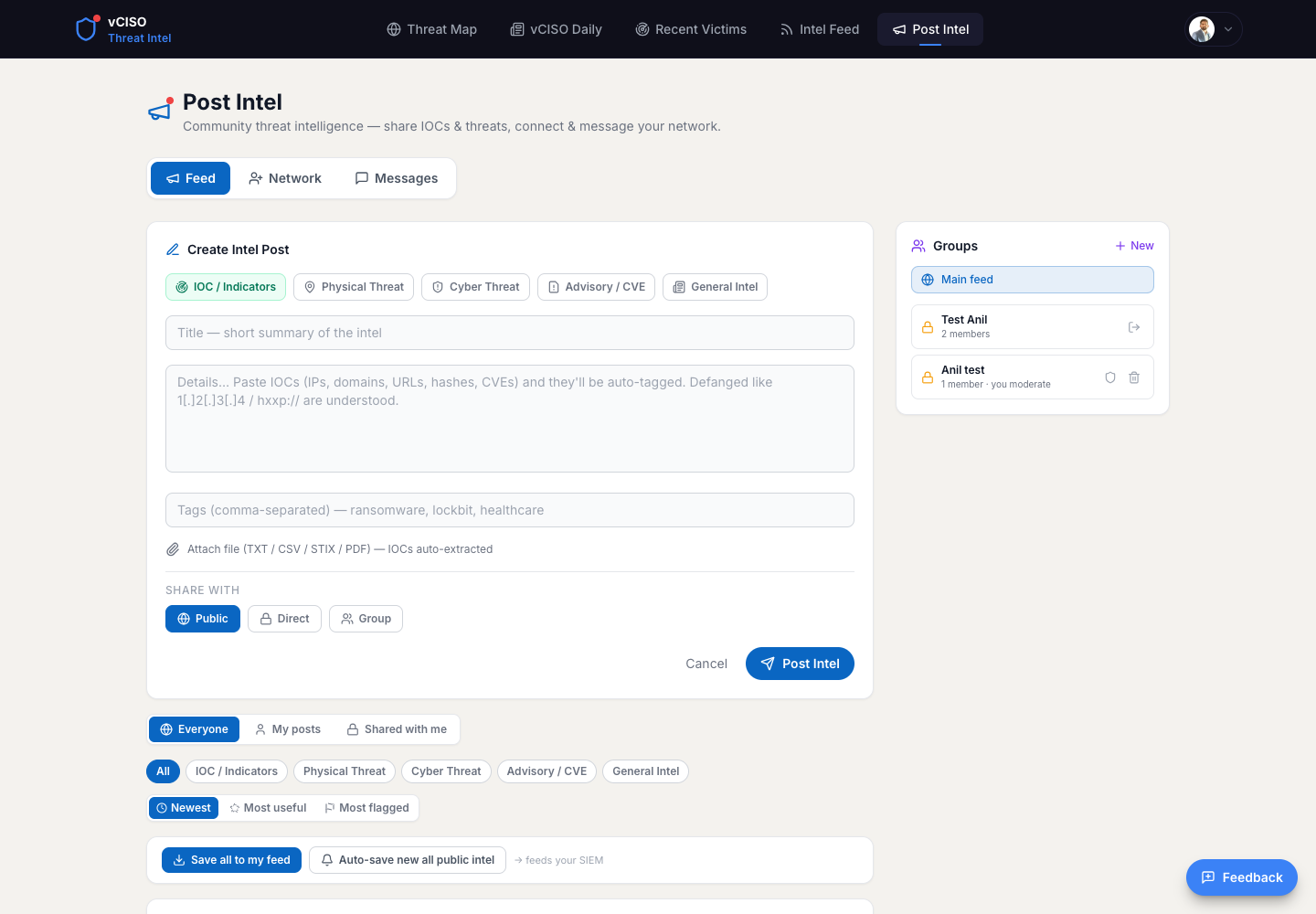
- + New → name (profanity-checked), optional description, Private (invite-only) or Public (anyone can join) → Create (you become moderator).
- Join a public group instantly; private groups require an invite you must Accept (under Group invitations) - nobody is force-added.
- Moderators (shield icon) → “Invite member by email…”, and can remove members.
- Click a group to filter the feed to it; post with Share with → Group to share IOCs to members only.
7.3 Network - connections
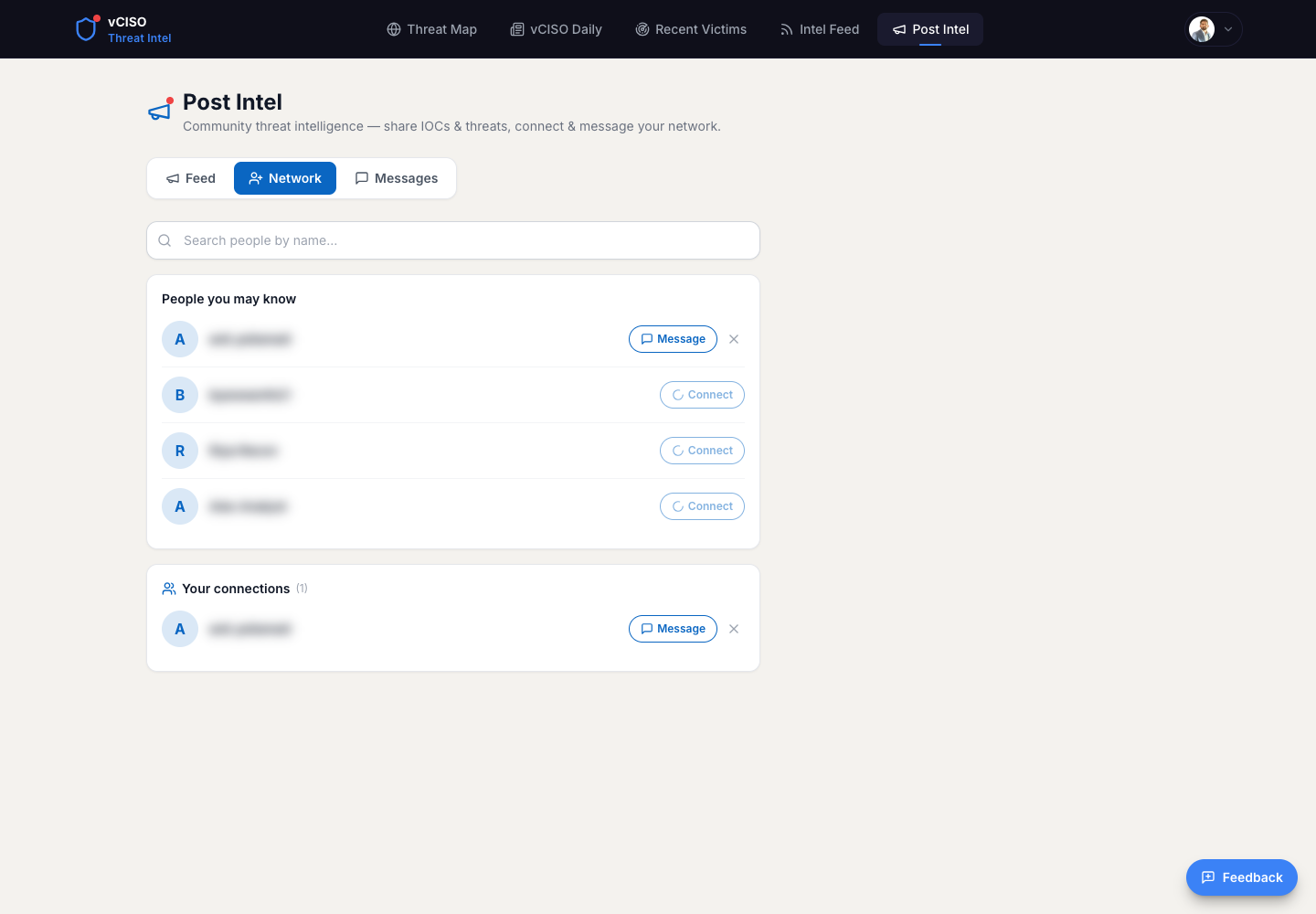
- Search people by name…, or see People you may know (group co-members).
- Connect → request goes pending. They see it under Invitations → Accept / Ignore.
- Your connections → Message or remove. The red
(N)on the Network tab = pending invites + group invites.
7.4 Messages - direct messages
- You can DM connections and people who share a group with you.
- Start from Network → Message, or the Messages tab.
Entersends,Shift+Enter= newline. Profanity-filtered, 4,000-char max. - Red
(N)on Messages = unread count; clears when you open the thread.
8. Profile & account
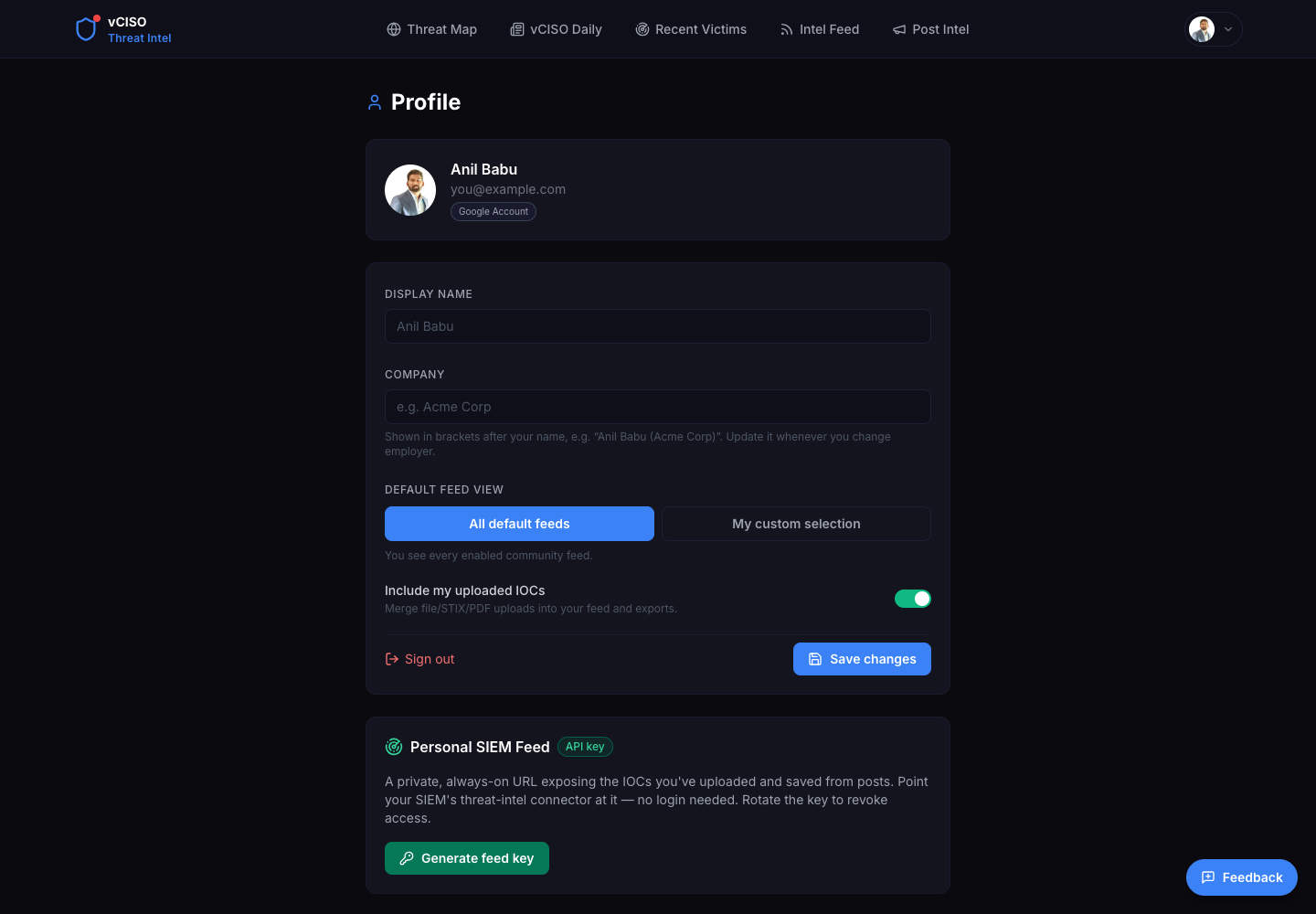
- Edit Display name, Company (shown as “Name (Company)”), timezone, default feed view, and “include my uploads”.
- Your feed key & SIEM exports moved to the Intel Feed page (section 6). Generate/rotate your feed key, grab the JSON / TXT / CSV / STIX export URLs, the TAXII 2.1 connector, the MISP feed, the Splunk app, plus your feed whitelist and technology watchlist - all in one place. Profile is now just your account.
9. Connect your SIEM (TAXII 2.1)
Your personal feed is also a TAXII 2.1 server, so a SIEM can pull your IOCs as STIX 2.1 indicators and poll for new ones automatically.
Step 0 - get your key: open Profile → Personal SIEM Feed, click Generate feed key, and copy the vciso_… key. It is the Basic-auth password (any username works). Treat it like a secret; Rotate or Revoke anytime.
https://vciso.au/taxii2/https://vciso.au/taxii2/feeds/https://vciso.au/taxii2/feeds/collections/1c9d6e7a-1111-4111-8111-1111111111112c9d6e7a-2222-4222-8222-222222222222siem, password = your feed key (or Bearer token = the key)Microsoft Sentinel
- In Sentinel, open Content hub → install/enable Threat Intelligence.
- Go to Configuration → Data connectors → open Threat Intelligence - TAXII →
Open connector page. - Under Configuration, fill the form:
- Friendly name:
vciso personal feed - API root URL:
https://vciso.au/taxii2/feeds/ - Collection ID:
1c9d6e7a-1111-4111-8111-111111111111 - Username:
siem· Password: yourvciso_…key - Polling frequency:
Once an hour(or your preference)
- Friendly name:
- Click
Add. Indicators arrive in theThreatIntelligenceIndicatortable - use them in Analytics rules and hunting. - Verify: Threat Intelligence blade shows your indicators with source = your TAXII connector.
Splunk
The easiest path is the dedicated vCISO Threat Intel Splunk app (section 10) - five ready-made dashboards, no key needed for the public data. If you would rather point a generic TAXII 2 add-on at your personal feed:
- Install a TAXII 2 add-on from Splunkbase (e.g. TAXII2 Add-on for Splunk / a STIX-TAXII connector) on your search head or heavy forwarder.
- Create a new TAXII input and set:
- Discovery / API root URL:
https://vciso.au/taxii2/feeds/ - Collection:
1c9d6e7a-1111-4111-8111-111111111111 - Auth: Basic - user
siem, password = your feed key - Interval:
3600s · Index:threat_intel
- Discovery / API root URL:
- Save and enable. The add-on writes STIX indicators to your index; search them:
index=threat_intel sourcetype=stix:indicator. - Simpler alternative: skip TAXII and poll the REST feed key as CSV (
https://vciso.au/api/feed/<key>?format=csv) with a scripted input - the path most Splunk shops use.
Verify from a terminal
# discovery
curl -u "siem:vciso_YOURKEY" -H "Accept: application/taxii+json;version=2.1" \
  https://vciso.au/taxii2/

# pull your IOCs as STIX 2.1 (incremental with ?added_after=<ISO8601>&limit=)
curl -u "siem:vciso_YOURKEY" -H "Accept: application/taxii+json;version=2.1" \
  "https://vciso.au/taxii2/feeds/collections/1c9d6e7a-1111-4111-8111-111111111111/objects/"
The objects endpoint returns a TAXII envelope { "objects": [ …STIX… ], "more": false }. Other TAXII 2.1 clients (Anomali, OpenCTI, MISP, QRadar) take the same Discovery URL + Basic credentials.
10. Splunk app & dashboards
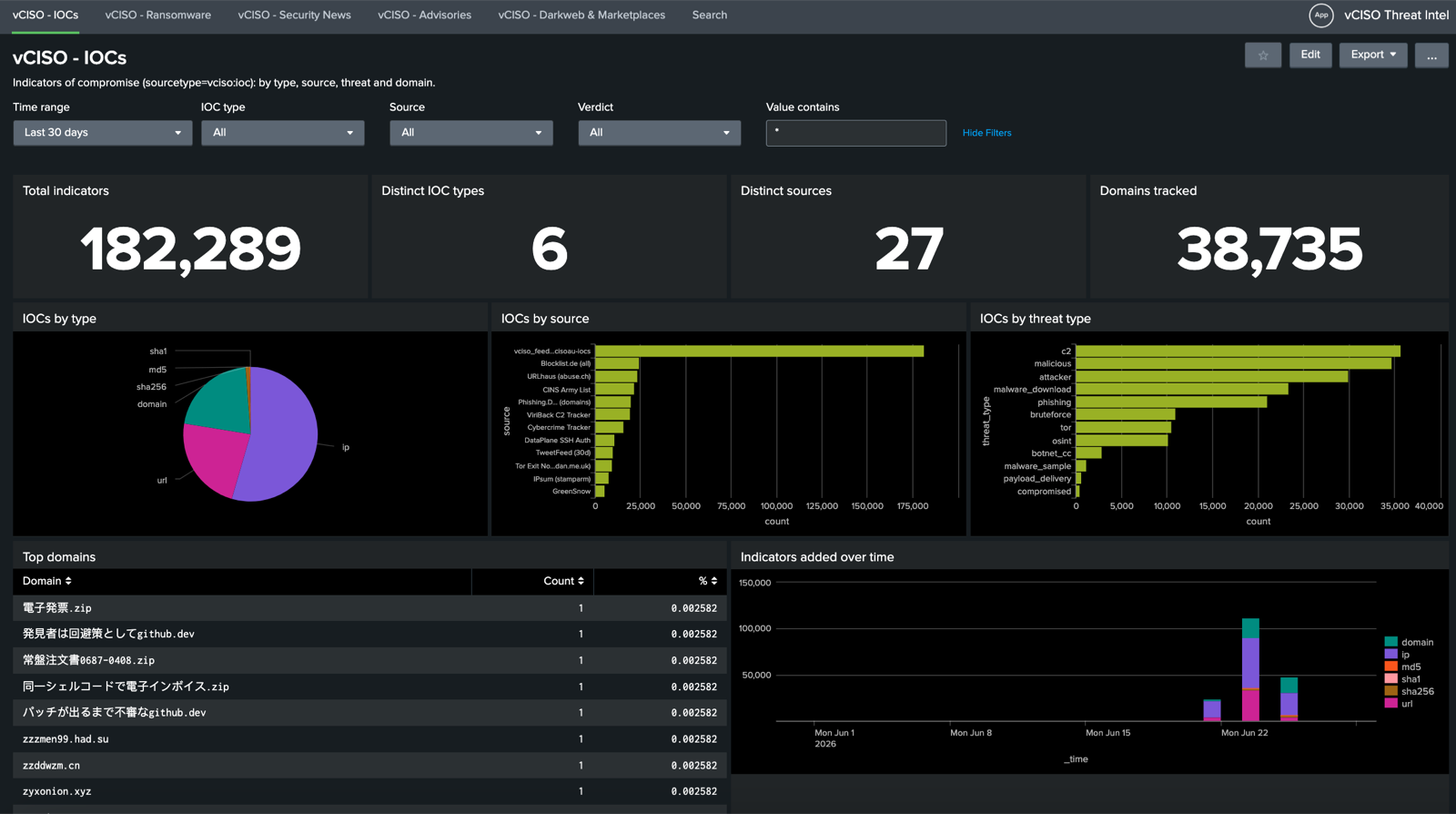
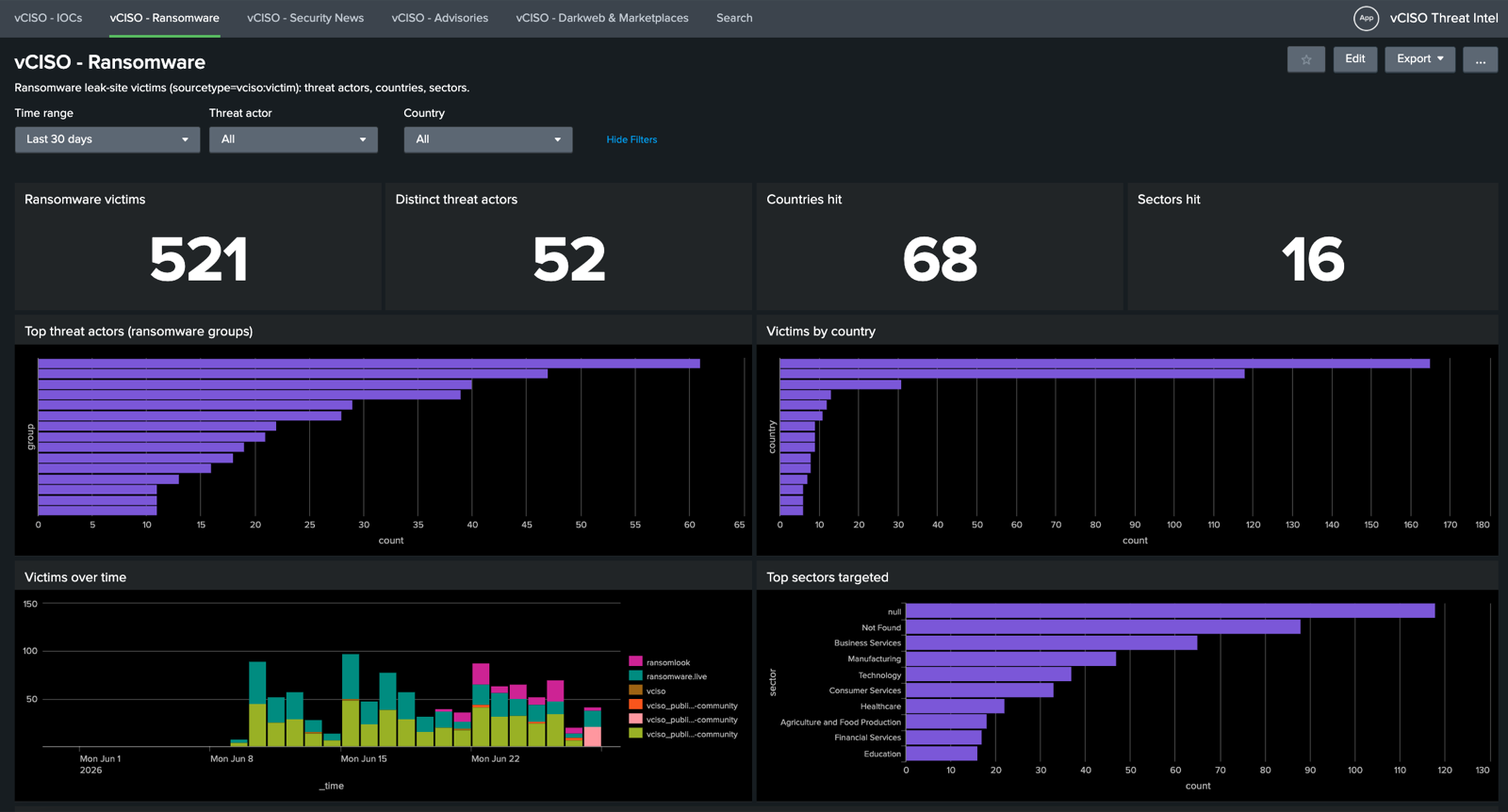
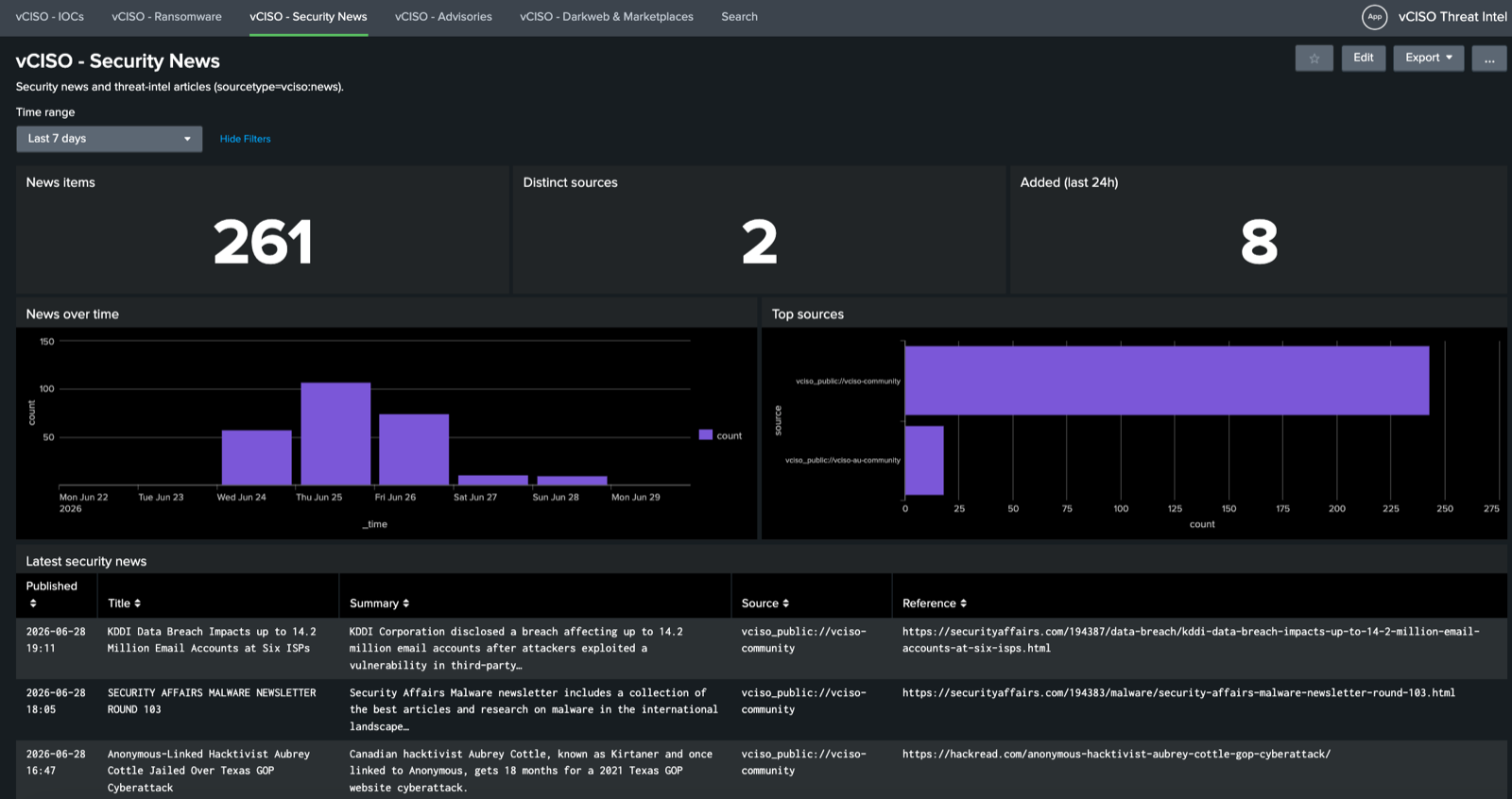
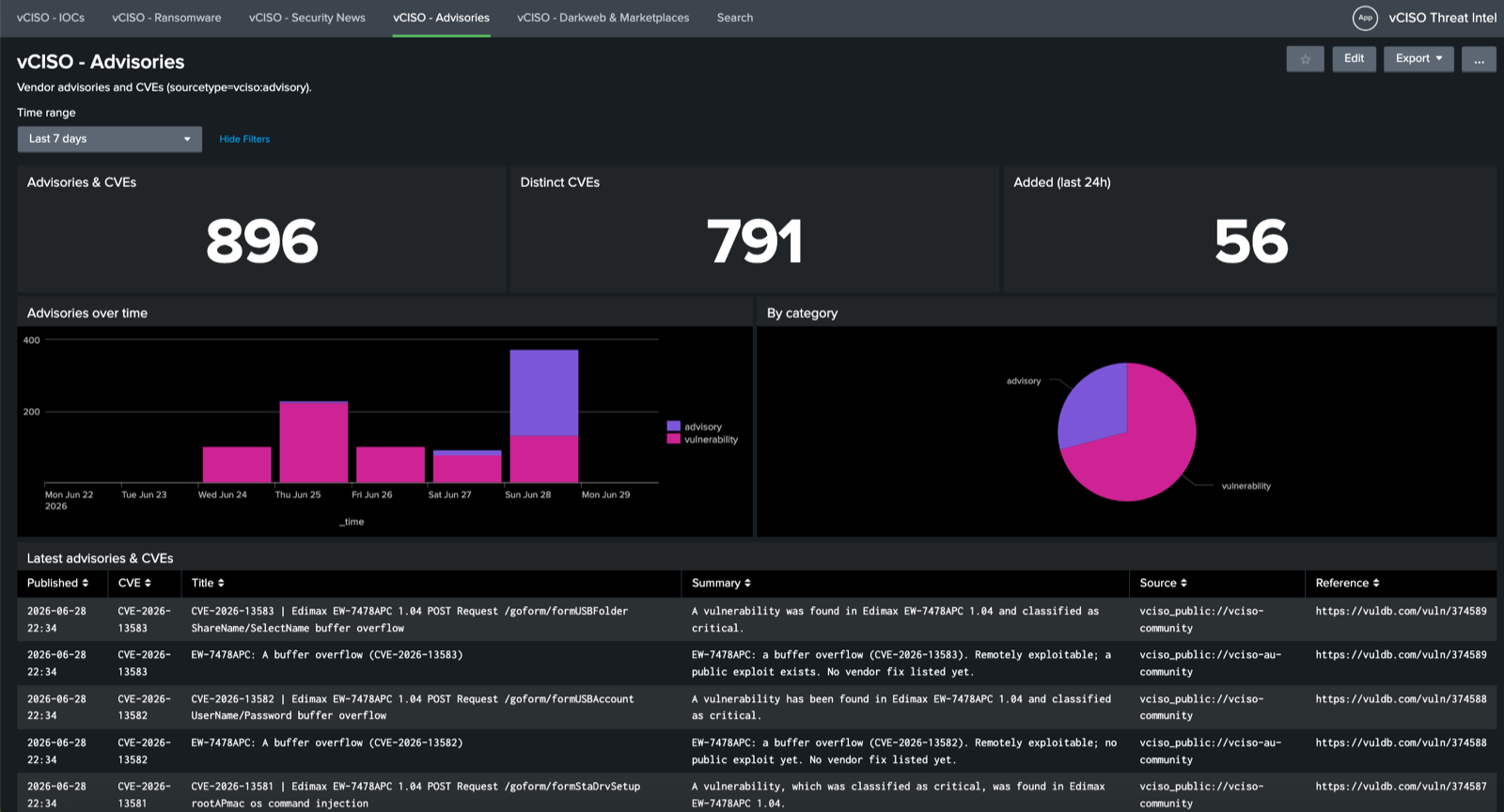
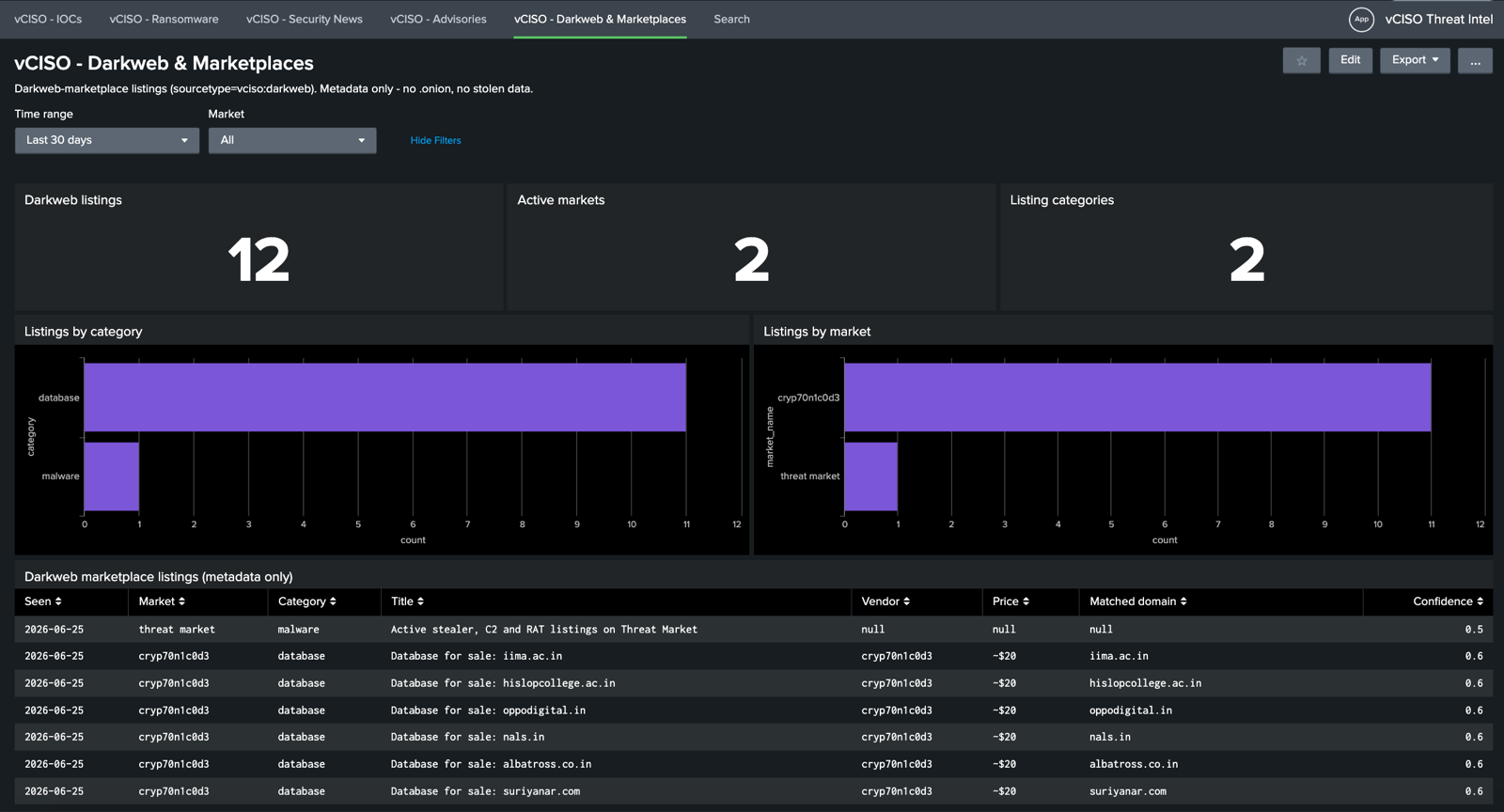
The vCISO Threat Intel Splunk app is a free, drop-in app (no Enterprise Security needed) that brings the whole platform into Splunk with five ready-made dashboards. It ingests the open community data with no API key, and can also pull your personal IOC feed if you add your vciso_ key.
Get the app free
Get it on SplunkbaseNow live on Splunkbase. Prefer a manual install? Download the .spl directly.
Install & set up
- Splunk Web → Apps → Manage Apps → Install app from file → upload the
.spl→ restart Splunk (this creates thevciso_iocsindex). - Settings → Data Inputs, then create:
- vCISO Community Intel (public) → New → Base URL
https://vciso.au, News window72. Pulls ransomware victims, news, advisories and darkweb. - vCISO Threat Intel Feed → New → leave the key blank for the public IOC feed (180k+ indicators), or paste your
vciso_key for your personal feed only.
- vCISO Community Intel (public) → New → Base URL
- Open the app - it lands on vCISO - IOCs. Give the first IOC run a minute to backfill the full feed.
The five dashboards
- IOCs - 180k+ indicators by type, source, threat type and domain, with type / source / verdict / value filters.
- Ransomware - leak-site victims: top threat actors, by country and sector, over time, with threat-actor and country filters.
- Security News - security news and threat-intel articles, top sources and trend.
- Advisories - vendor advisories and CVEs (CVE extracted), by category and over time.
- Darkweb & Marketplaces - marketplace listing metadata only (no .onion, no stolen data).
Each dashboard has its own time-range picker.
Clean sourcetypes for rules
Everything lands in one index (vciso_iocs) with a sourcetype per category, so you can write searches and correlation rules per source:
index=vciso_iocs sourcetype=vciso:ioc ioc_type=ip
index=vciso_iocs sourcetype=vciso:victim country=AU
index=vciso_iocs sourcetype=vciso:advisory title=*CVE-2026*
index=vciso_iocs sourcetype=vciso:news
index=vciso_iocs sourcetype=vciso:darkweb
11. Exploited Vulnerabilities (KEV)
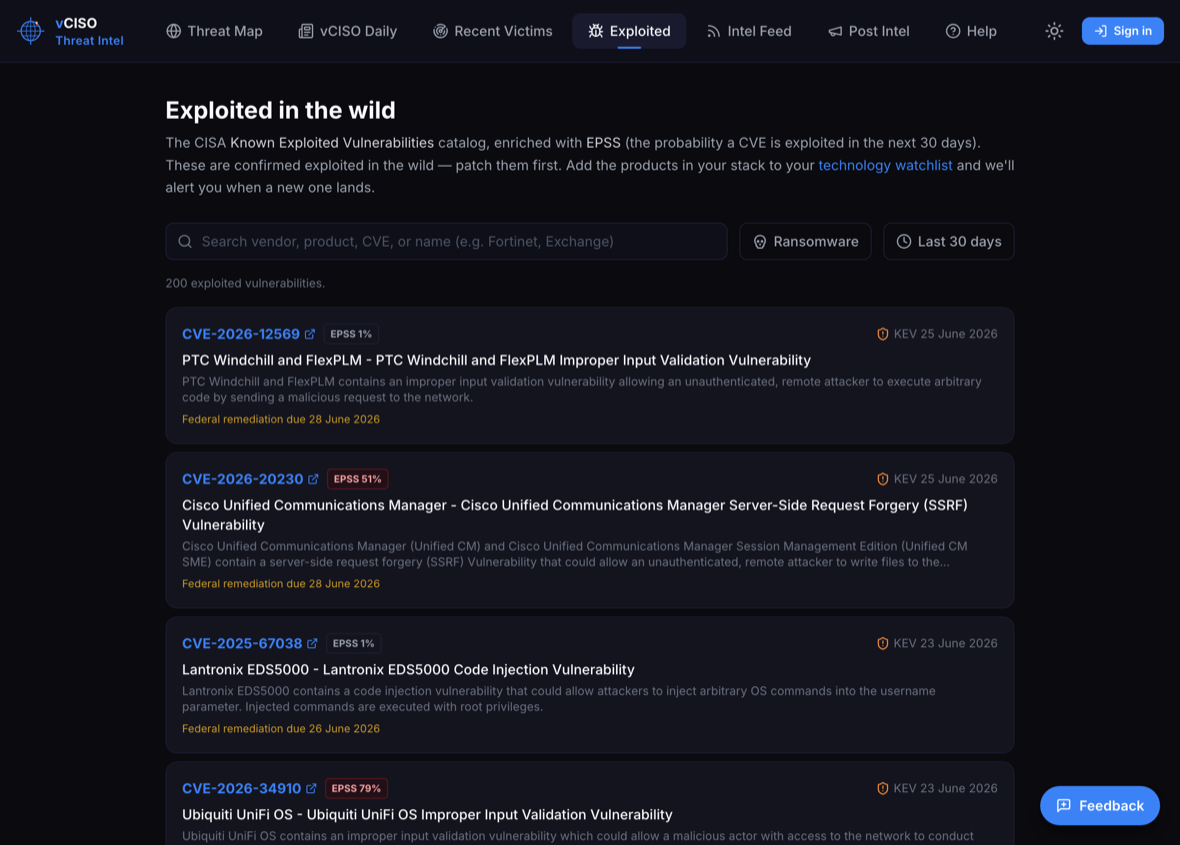
What it is: the Exploited tab is the CISA Known Exploited Vulnerabilities catalog - CVEs confirmed exploited in the wild - enriched with EPSS (the probability a CVE is exploited in the next 30 days). Patch these first.
- Search by vendor, product, CVE or name; filter to
Ransomware-linked or theLast 30 days. - Each entry shows its EPSS score, a ransomware flag, the KEV add date and the federal remediation due date, with a link to NVD.
10.1 Technology watchlist (sign in → Profile)
Add the vendors/products in your stack (Fortinet Exchange Citrix…) under Profile → Technology Watchlist. When one is added to KEV, you get an alert in the bell - so you patch what's actually being exploited in your environment first.
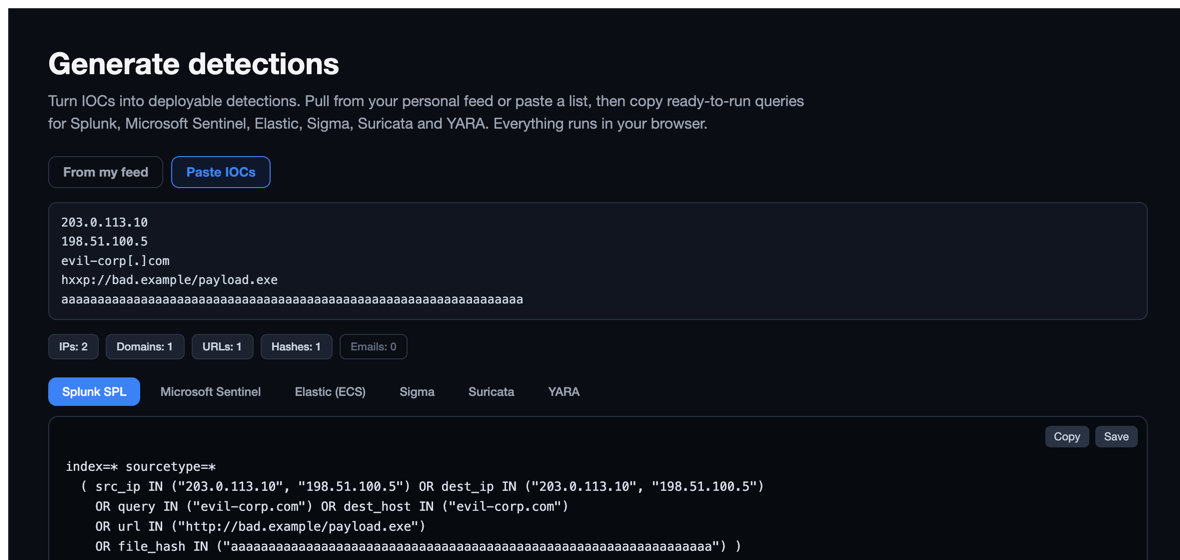
12. Generate Detections
What it is: turn any IOC set into ready-to-paste detections. Open Generate detections from the My Feed header, or the Detections button on any post.
- Source: pull from your personal feed, or paste a list - defanged IOCs (
1[.]2[.]3[.]4,hxxp://,evil[.]com) are auto-refanged. - Outputs:
Splunk SPLMicrosoft SentinelElasticSigmaSuricataYARA(for hashes). Copy or download each. - Everything runs in your browser - your indicators are never sent anywhere.
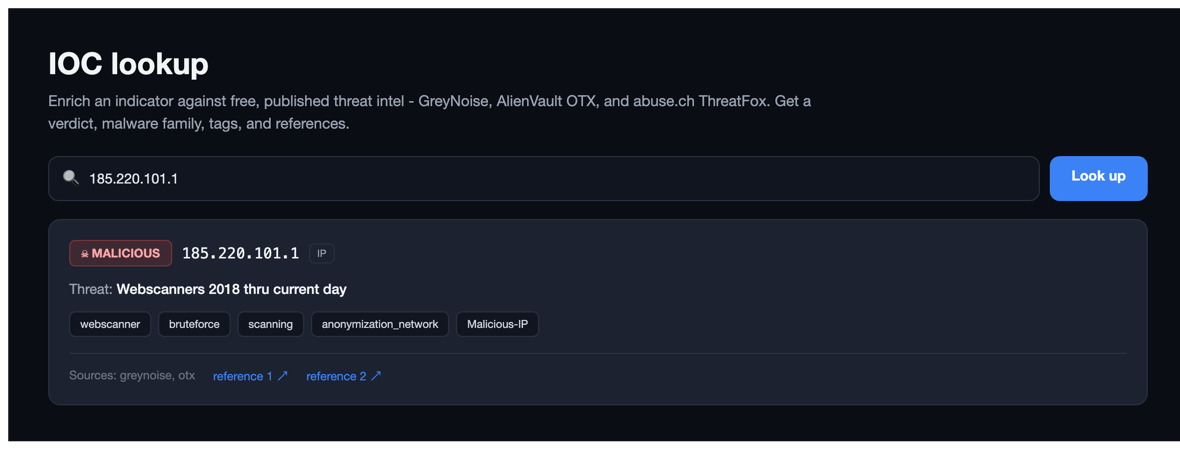
13. IOC Lookup & Enrichment
What it is: the IOC lookup enriches any IP, domain, URL or hash against free, published threat intel - GreyNoise, AlienVault OTX, abuse.ch ThreatFox and OpenSourceMalware - returning a verdict (malicious / suspicious / benign), malware family, tags and references.
The same page also has a supply-chain package check: pick an ecosystem (npm, PyPI, crates, NuGet, Maven, Go, ...) and a package name to check it against OpenSourceMalware for known malware before you install it.
The daily job also enriches your saved IOCs in the background, so the verdict shows up automatically in your feed, your MISP export, and the generated detections.
14. Reporting bugs & requests
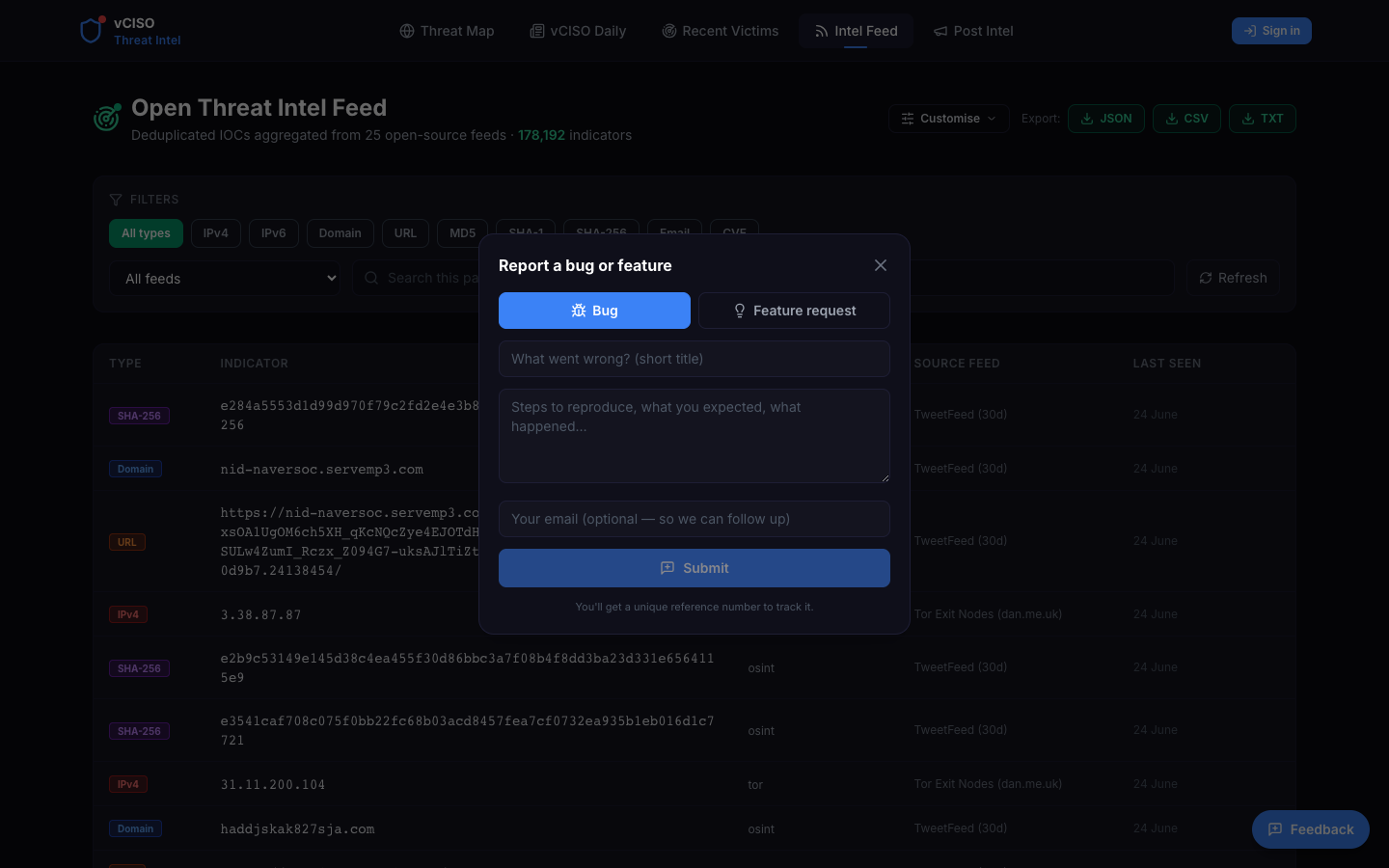
Click Feedback (bottom-right, every page). Choose Bug or Feature request, add a title/details, submit → you get a ticket number (BUG-00042 / FR-00042). Since we're lightly staffed, this is the fastest way to reach us.
Still stuck? Head back to the Threat Map or hit the Feedback button - we read every ticket.